AI Image Enhancer & Image Upscaler
My Works
No results yet
Upload an image and hit enhance, and results show up here
Our AI image enhancer makes blurry, low-resolution pictures look sharp again. This online image upscaler uses AI to repair faces, sharpen fine details, and remove noise, then enlarge your photo up to 10x without it looking soft. As an AI photo enhancer, it works entirely on the web, with no app to install. Just upload an image, pick how much you want to upscale image quality by, and let the AI do the rest in seconds. It is a fast, simple way to upscale image files and enhance photo quality for old snapshots, profile pictures, product shots, and prints.
AI image enhancer examples
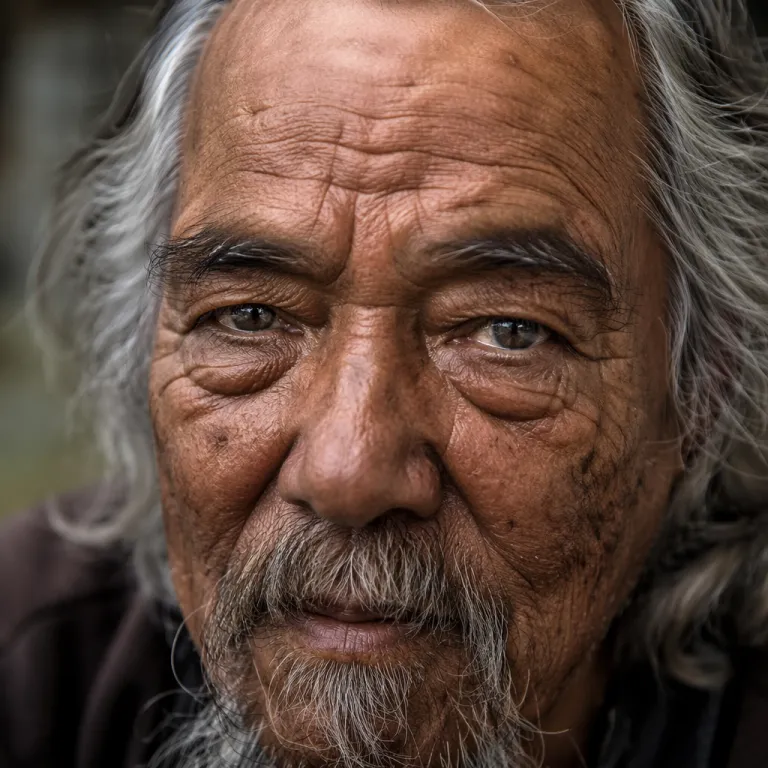
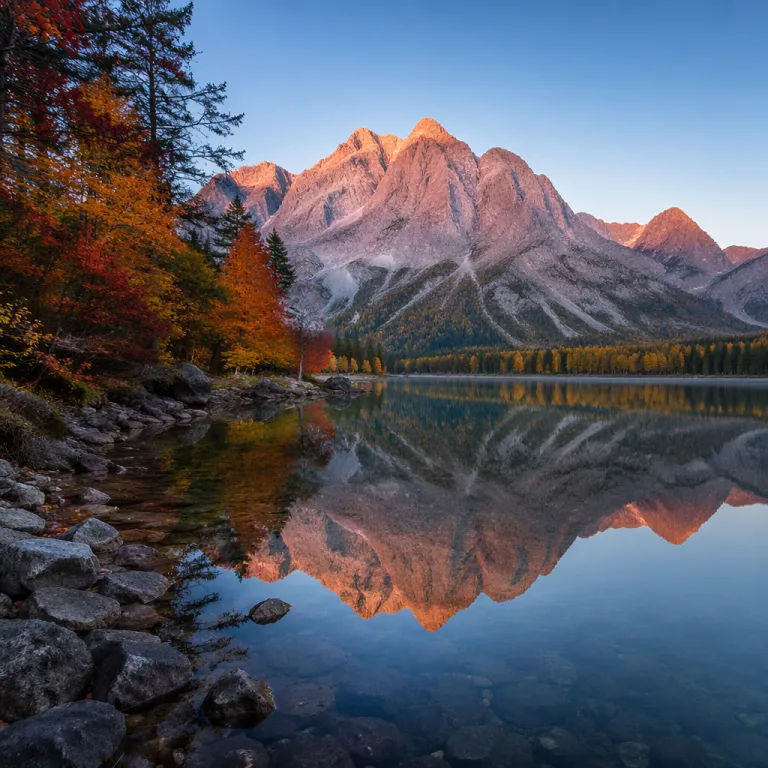
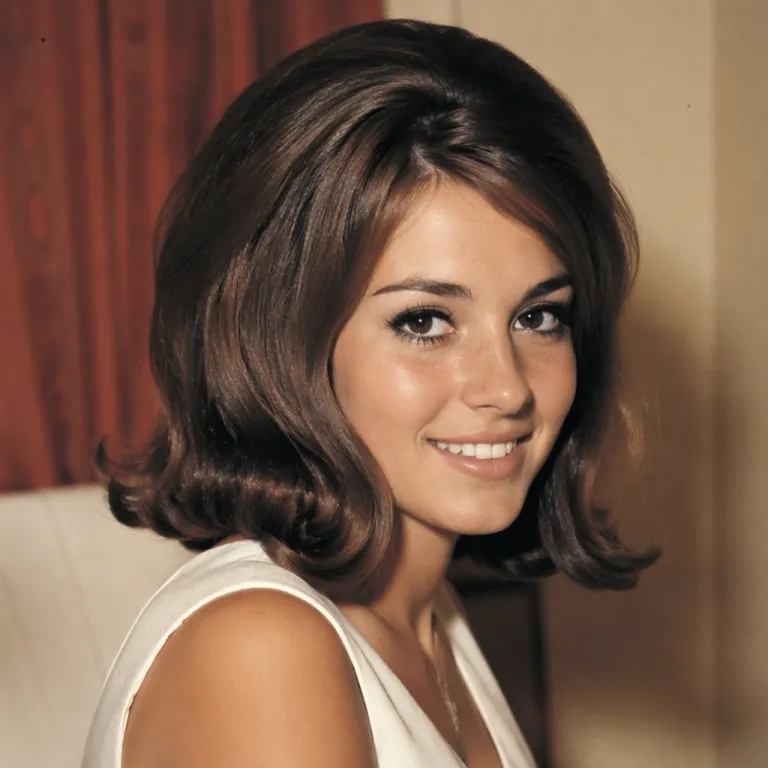

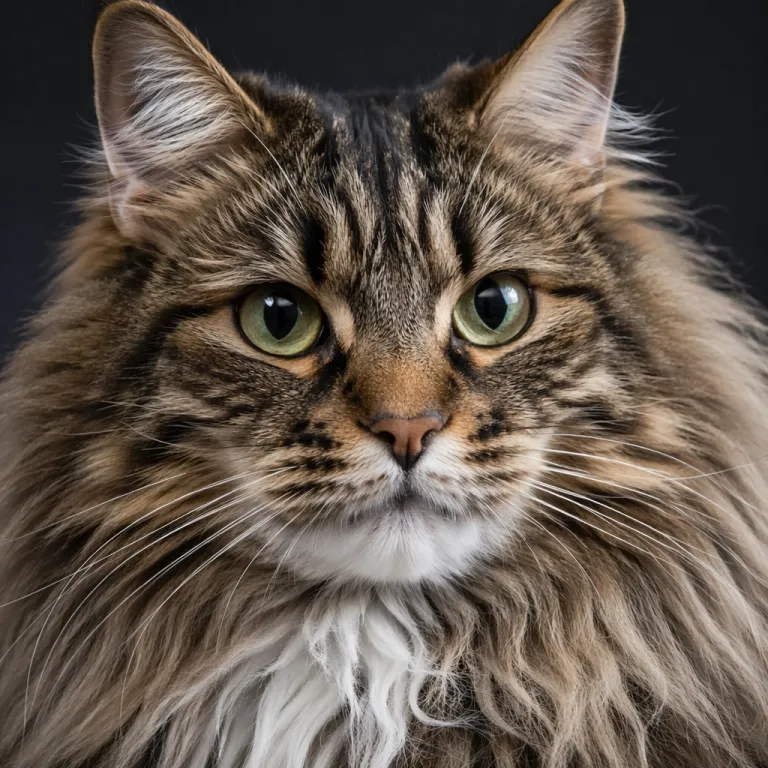
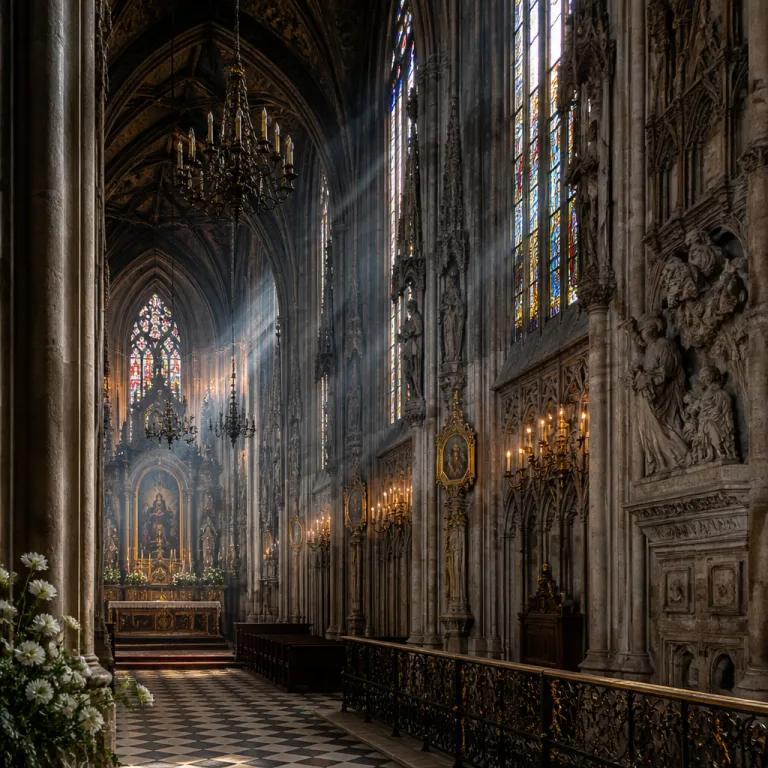

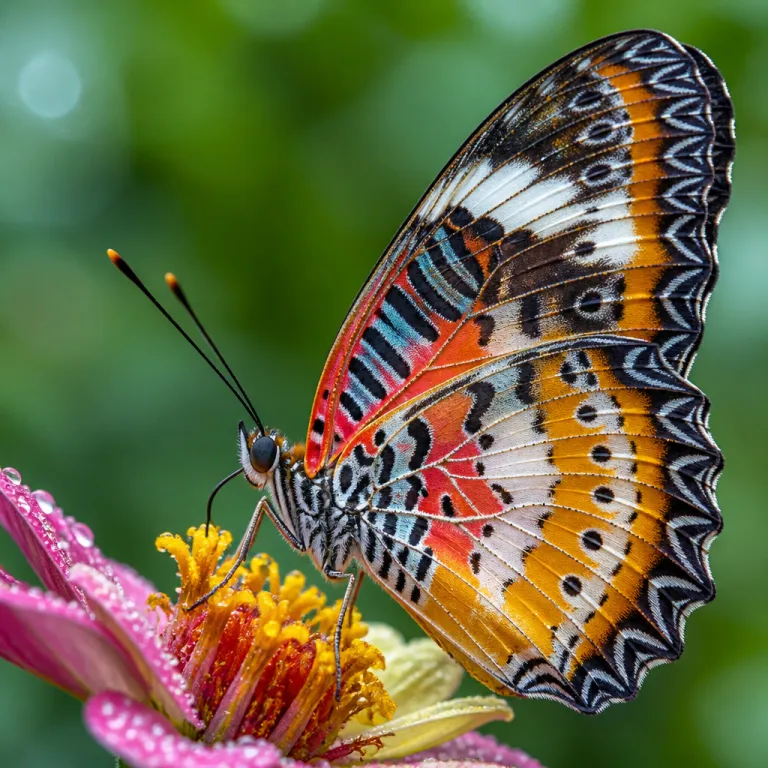
How to enhance your photos in 3 steps
- 1
Upload your image
Drop in a PNG, JPEG, or WebP photo. Your file is uploaded securely and stays private to your account.
- 2
Choose your scale
Pick how much to upscale image quality by, from a gentle boost up to 10x. Higher scales take longer and cost a bit more.
- 3
Enhance and download
Our AI photo enhancer repairs faces, sharpens details, and enlarges the image. Preview the result and download it in full resolution.
Why use our AI image enhancer
Sharper detail, restored faces, up to 10x
The AI image enhancer denoises, sharpens fine detail, and repairs faces while enlarging your photo up to 10x, so it stays crisp instead of blurry.
Free to try, pay per use
Sign up and check in daily for free credits. No subscription: buy credits once when you need more, and they never expire. Failed jobs are refunded automatically.
Private to your account
Your uploads and enhanced results are visible only to you. Nothing is shared unless you choose to share it, and you can delete your files at any time.
Works in your browser
Run the AI image enhancer online from any modern browser on desktop or mobile, with no app to download and no plugin to install.
Keeps the original look
Upscaling adds detail without changing the composition, colors, or framing of your photo, so the result still looks like the picture you started with.
Credits that never expire
Try it with free daily credits, then buy more in a one-time purchase only when you need them. There is no subscription and credits never expire.
What you can do with the image upscaler
Restore old photos
Bring blurry, faded family photos back to life. Denoise them, restore faces, and upscale image detail with one click.
Sharpen low-res avatars
Turn a small, pixelated profile picture into a clear, high-resolution portrait that looks great everywhere.
Upscale product images
Enlarge e-commerce product shots and enhance photo quality so every detail looks crisp on your store and listings.
Enlarge images for print
Upscale image files to higher resolution so posters, photo prints, and large formats stay sharp instead of pixelated.
FAQ
How do I use the AI image enhancer?
Upload a PNG, JPEG, or WebP image, choose how much you want to upscale it by, then let the AI enhance photo quality. In a few seconds you can preview and download the enhanced result, with no app to install.
How much can I upscale an image?
You can upscale image quality up to 10x. Higher scales take longer to process and cost slightly more credits. Very large outputs can occasionally fail. If that happens, lower the scale or start from a smaller image.
What image formats are supported?
The image upscaler accepts PNG, JPEG, and WebP files. Upload any of these and the AI photo enhancer will sharpen, denoise, and enlarge it for you.
Are my images private?
Yes. Your uploads and enhanced results are visible only to you and are never shared unless you choose to share them. You can delete your files from your account at any time.
How do I get the best results?
Start with the clearest source image you have and choose a scale that fits it. A moderate scale on a small photo often looks better than pushing straight to 10x. If a large job fails, reduce the upscale factor or use a smaller input image.
How much does it cost and how do credits work?
Each enhancement uses credits based on the upscale factor, and the cost is shown before you run it. New accounts get free credits, and you can buy more in a one-time purchase that never expires.
What is the largest image I can upload?
You can upload large PNG, JPEG, and WebP photos, but a very large image at a high upscale factor takes longer and can occasionally fail. If that happens, lower the scale or start from a smaller image.
Ready to enhance your photos?
Upload an image and let our AI image enhancer upscale it up to 10x, fix faces, and sharpen every detail. Sign up for free credits and try it now.